
How to See Deleted Messages in GB WhatsApp
Still anxious about accidentally deleting GB WhatsApp messages or missing important conversations? While the official WhatsApp doesn’t give you a way to view deleted messages, GB WhatsApp has introduced a special privacy setting that allows you to enable a feature to view deleted messages. Don’t worry, this article will directly guide you through practical tips for viewing deleted messages. No complicated operations are required, and even beginners can quickly get started.
Why are Messages Deleted on GB WhatsApp?
Deleted messages on GB WhatsApp are a common scenario. There could be a variety of reasons why someone deletes a message
- Mistakes: The sender sent the wrong message.
- Sensitive Information: The sender might have shared private information.
- Regret or Second Thoughts: Sometimes people delete messages after second-guessing.
While these messages disappear in standard WhatsApp, GB WhatsApp provides a way to enable a feature to recover and view them. Keep reading to learn how you can do this.
How to Enable the Setting to See Deleted Messages in GB WhatsApp?
- GB WhatsApp has a straightforward setting that allows you to enable the ability to see deleted messages. This feature is simple to set up and allows you to avoid the frustration of missing deleted messages. Here’s how you can do it:
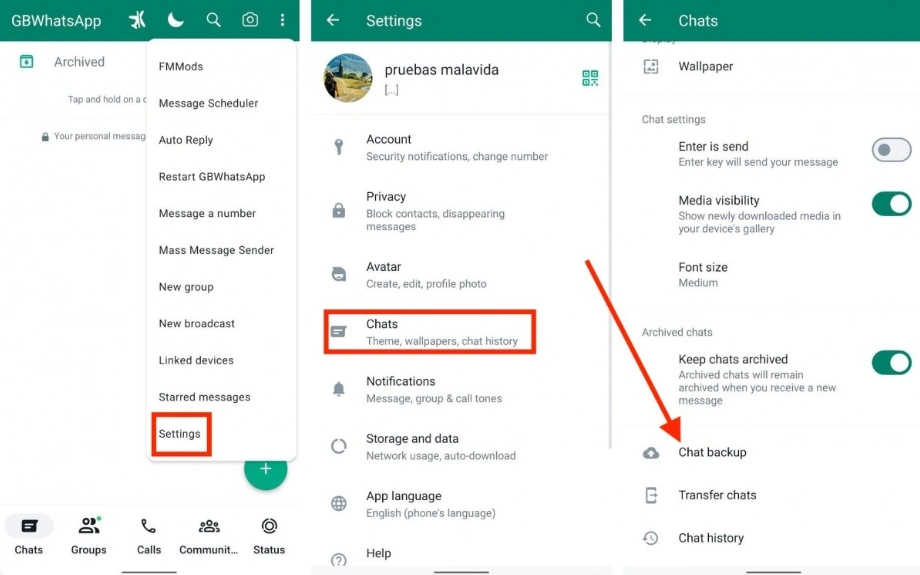
- Open GB WhatsApp Settings: First, open the GB WhatsApp app on your device. Tap the three-dot menu (⋮) in the top right corner of the screen. Scroll down and select Settings from the options.
- Enable the ‘Deleted Messages’ Option: Once you’re in the Privacy Settings: Look for a setting labeled “Deleted Messages” or “View Deleted Messages.” Toggle it ON. This setting allows GB WhatsApp to show deleted messages from your chats.
What If You Can’t See Deleted Messages After Enabling the Setting?
If you enabled the feature but still can’t see deleted messages, try the following:
- Restart the App: Sometimes, a simple restart can fix minor glitches.
- Check for Updates: Make sure you’re using the latest version of GB WhatsApp. An outdated version might prevent this feature from working properly.
- Clear Cache: Go to your phone’s settings and clear the GB WhatsApp cache to refresh the app.
Tips to Avoid Losing Important Messages
- Backup Your Chats Regularly: Use GB WhatsApp’s backup feature to save your conversations.
- Enable Notifications: Keeping notifications enabled can help you catch messages before they’re deleted.
- Stay Updated: Always keep GB WhatsApp updated to the latest version.
Final Thoughts
By following the methods above, you should now have mastered the techniques for recovering deleted messages in GBWhatsApp and some tips for saving them. This feature undoubtedly greatly enhances our control over information management and makes up for the shortcomings of the official application. However, please remember that this “superpower” comes at the cost of compromise on the application’s security and stability. In the digital age, information changes rapidly, and developing the habit of regularly backing up important data is the safest long-term solution.